
Loading...
View Categories

How to Add Fields to your WooCommerce Checkout Page

With Pie Register’s WooCommerce admins can decide which fields to show on checkout for their users. There are multiple fields that the user can view on checkout, including billing and shipping address.

Note: This feature will only work for premium users. You can get Pie Register Premium here.

Before you start, ensure your Pie Register Premium plugin is activated.

Select the Pie Register Form You Want to Sync with WooCommerce Add-on

To start, go to Pie Register > Manage Forms and create a new form, or edit an existing one to add the WooCommerce fields.

Registration Form Add New

From the WooCommerce fields, drag and drop the field you want to add to your registration form.

Add Fields You Want

You can also edit the field from the edit button on the top left. The edit dropdown menu gives you many options.

To make a field required, fill in the checkbox.

Select Yes if you’re going to show it in the user profile.

In the Show on Checkout option, administrators can choose whether their customers will see the field information when they go to the checkout page in the online store.

Select Yes On Show On Checkout

The list of fields that can be shown on checkout are:

  • website
  • AIM
  • Yahoo IM
  • Jabber
  • About Yourself
  • text
  • textarea
  • dropdown
  • multiselect
  • number
  • checkbox
  • radio
  • time
  • date
  • custom role
  • invitation code
  • upload
  • profile pic

Save and Preview the form from the top of the editor.

This is what your front end will look like:

Your Information

WooCommerce Add-On Features

With the WooCommerce add-on, there are multiple features that you can use to your advantage.

The WooCommerce Add-on allows admins to replace WooCommerce default login and registration forms with Pie Register login and registration forms. Upon registration, new users can also receive free gift products as a token of gratitude from the admin.

That’s how easy it is to show fields on checkout with the WooCommerce addon for Pie Register.

Was this article helpful? Please let us know in the comments or Contact Us if you have any questions.

View Categories

How To Use Built-in Form Templates In Pie Register

Would you like to create registration forms quickly on your website and customize them the way you want? Use Pie Register’s built-in form templates to save time and jump-start your form-building process.

This tutorial will show you how to use form templates in Pie Register. Let’s get started.

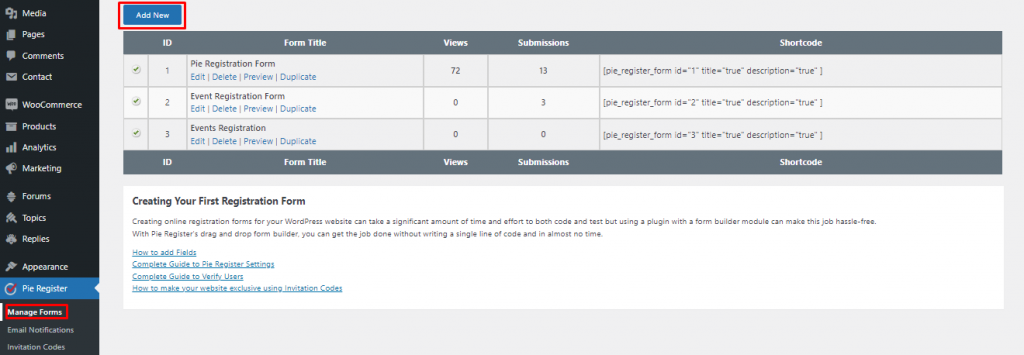
  • Log into your WordPress dashboard.
  • Go to Pie Register >> Manage Forms.
  • Click on the Add New button.

pr-addnew

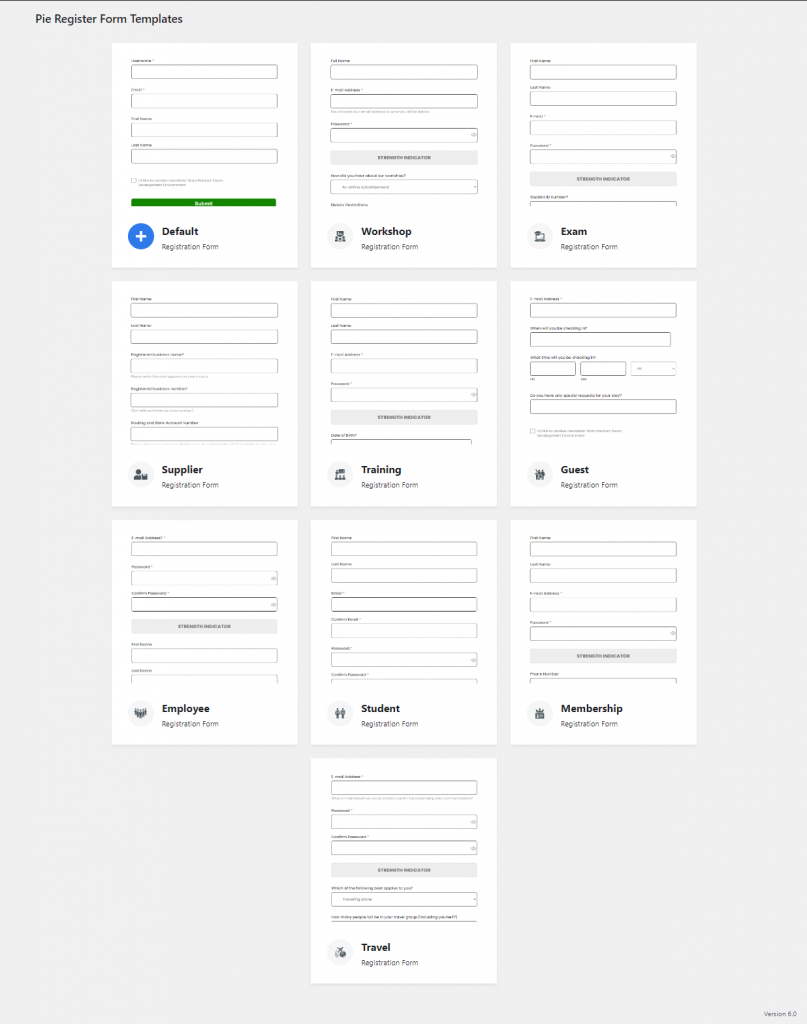
This will bring you to the page of Form Templates. You can select any of the form templates according to your requirement. If you prefer to build your form from scratch, choose the Default Form option.

The list of available registration form templates are:

  1. Default Form
  2. For Workshop Employees
  3. For Enrolling In Examination
  4. For Suppliers
  5. For Training Institutes
  6. For Guests
  7. For Employees
  8. For Enrolling Students
  9. For Membership 
  10. For Travel Agencies


pr-templates

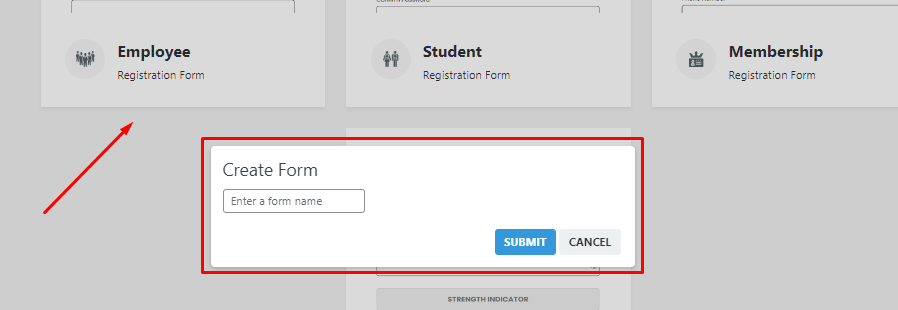
  • Click on any of the forms and a pop-up will appear to name it. Add in the form title and press Submit.

pr-create-form

This will direct you to the form builder where you can add or remove fields as per the need or use the form the way it is.

pr-default-form

That’s it! We hope this article was helpful. For queries, drop us a message here, and our support team will get in touch with you soon.

View Categories

How to Install and Use the Geolocation Add-on With Pie Register

Would you like to learn more about the users’ locations who fill out your forms? With the Pie Register’s Geolocation add-on, you can easily collect geographical data for each of your registered users.

This tutorial will show you how to install and use the Geolocation add-on for Pie Register.

What is Geolocation Add-on, and How does it Work in Pie Register?

Geolocation add-on allows you to track user locations with form submissions. Admin can collect and store website visitors’ data and their form submission data. It helps in designing specifically targeted marketing strategies in the future.

Before getting started, you’ll first need to ensure that Pie Register is installed and activated on your WordPress site.

Install And Activate

Once you’ve installed Pie Register, now you are ready to install and activate the Geolocation addon.

  • To get the addon package, log in to your Genetech Store Account and download the Addon.
  • Login to the WordPress website/blog’s admin panel.
  • Go to the dashboard.
  • Click on Plugins > Add New > Upload Plugin.

Add Geolocation Addon

  • Locate and Install Plugin.
  • Once it is installed, click on Activate.

Activate Geolocation Addon

  • The plugin will show up in the list of plugins.

If you’ve bought the addon separately :

  • Log into your store account to get the license keys. Use the credentials you provided at the time of purchase.
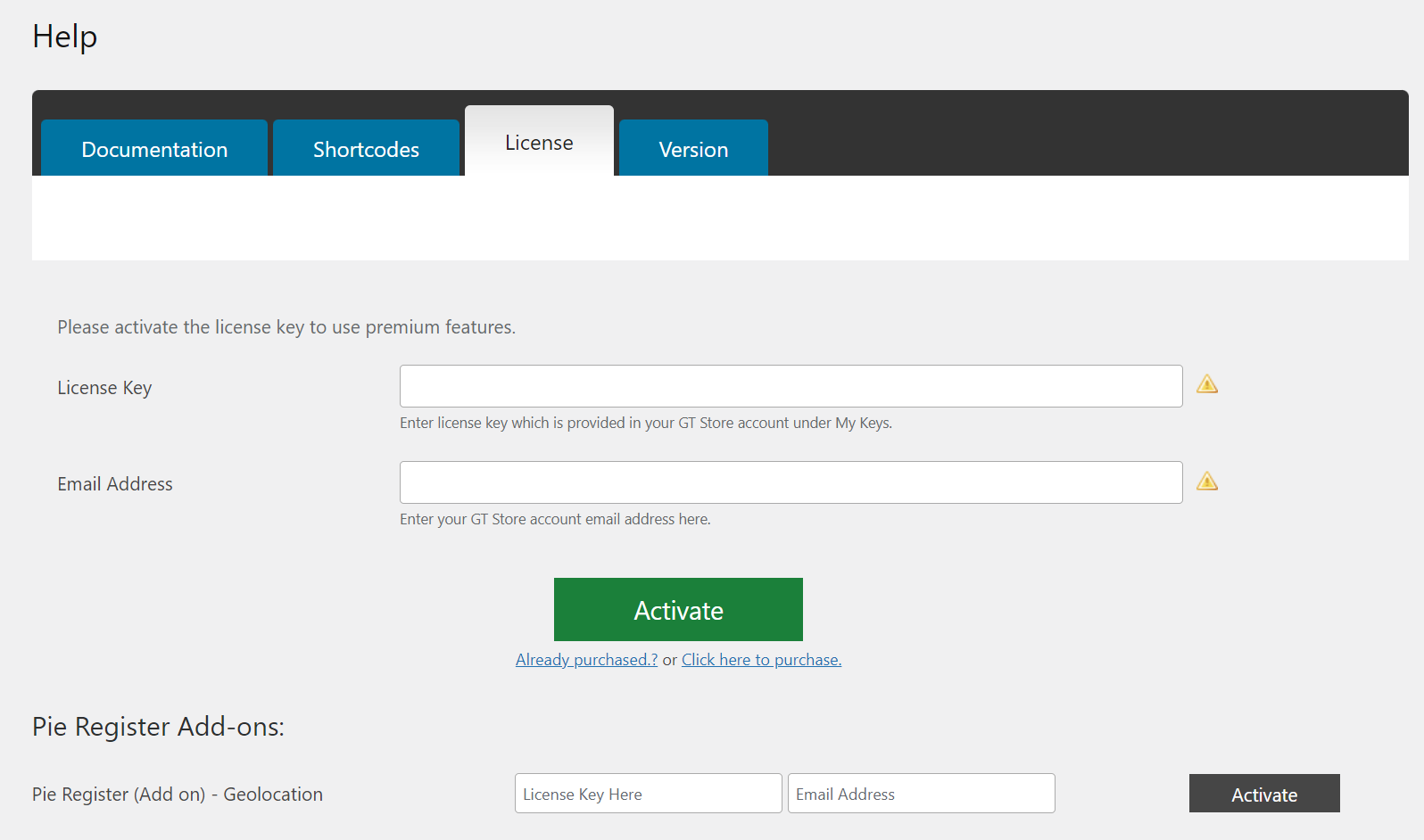
  • Go to Help > License.
  • Add the License key and the email address used at the time of purchase.
  • Click Activate..

If you’re a Premium User :

  • Go to Help > License.
  • Click Activate.

Add Lkey Geolocation Addon

After you’ve activated the addon, you can configure its settings by going to Pie Register >> Settings and selecting the Geolocation tab.

Add API Key Geolocation Addon

Enter the Google API keys generated from your google account and save. You can check the complete guide on how to get API keys here.

Viewing Entry Location Data

You can view all entries of registered users on your website through your WordPress Dashboard. From your WordPress Admin Dashboard, select Users.

User Data Geolocation Addon

Here you can view the list of all the registered users on your website. To view an individual entry, click Edit. In addition to an interactive map, you’ll see all the details such as the user’s city, state, country, and zip code and approximate latitude and longitude coordinates for the user’s town.

That’s it! You now know how to collect geolocation data to learn more about your users and plan target-based marketing campaigns for them.

View Categories

How To Translate Pie Register Forms In a Different Language With Loco Translate

Would you like to translate Pie Register forms into a different language? Many translation plugins are available for WordPress, and it can be challenging to find the best one.

Pie Register has several built-in translations available to help you translate the form. This tutorial will discuss how to translate your forms into a new language.


Translating Form Field Labels, Placeholders, and Default Values Using Built-in Customization Option

To translate the default name of any field in one of your forms, you can simply edit its label.

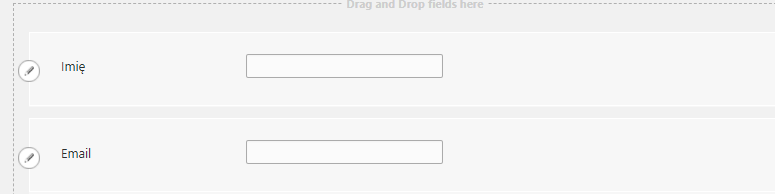
Open the form builder, then click the edit icon on the field whose label you want to translate. In the Field Options panel, enter your text in your desired language in the Label field. Similarly, you can also translate the placeholder for a field in the Field Options panel.

Builder

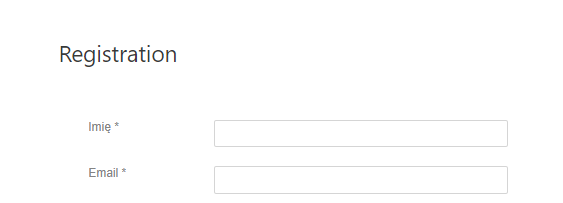
The output will be something like this.

Builder Translated

Install and Activate Loco Translate to Translate Admin Areas

To get started, log in to your WordPress admin dashboard and go to Plugins > Add New.

  • Download the plugin from the Add New option in your Plugins section of your Dashboard.
  • Locate the Loco Translate Plugin and install it.

Add Plugin

  • Once it is installed, click Activate.

Activate Loco Translate

The plugin will now show in your list of Active Plugins.

Configure Settings

Once the plugin is installed and activated, you can access it from your admin dashboard.

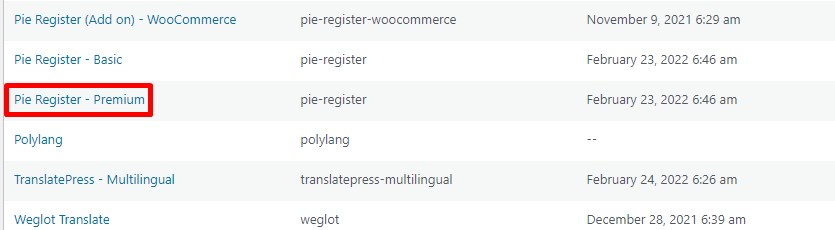
Go to Loco Translate and locate Pie Register in the “Translate plugins” list, as shown in the image below.

Loco Translate Settings

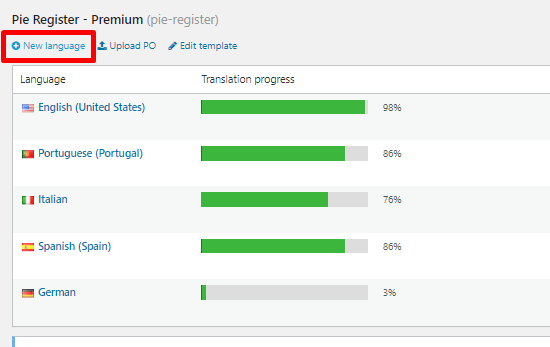
Click on Pie Register here, and it will take you to the translations page for Loco Translate, where you can select a new language for translating your forms.


Add a New Language

If you click on the “New Language” option, you are taken to the New Language page of Pie Register Loco Translate.

Add New Language

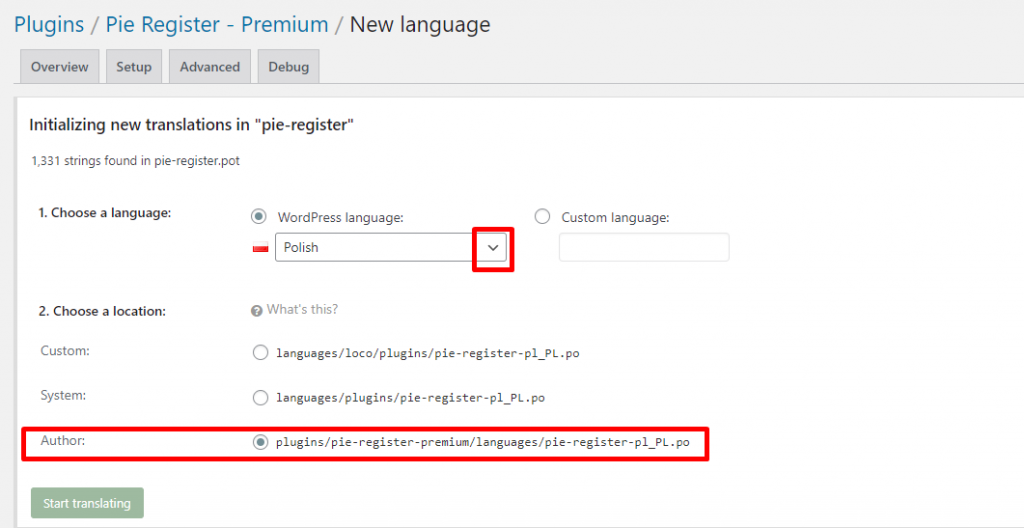
Here, you can choose any language you want from the drop-down or opt for the Custom Language option.

Choose Language

Ensure not to save them in the plugins folder (check screenshot above), as it will be over-written when the plugin updates. You can opt for the remaining two options for smooth translations. You can start translating once you are done by clicking on the “Start Translating” button.

The next page will show you a list of all the text strings from your form builder. For each text string, you will have to enter translations manually.

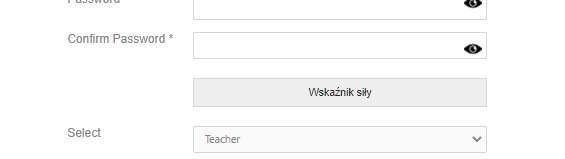
As shown in the image, the language we have chosen for this tutorial is Polish, and the text string we have chosen is “Strength Indicator.”

Strength Indicator

After you have finished translating text strings, you can hit Save.

To view the result, you must first go to Dashboard > Settings.

Go to General Settings > Site Language and set the site language to the one you have translated.

For this tutorial, we are using Polish, as shown below.

Site Language

Note: The language options in WordPress Dashboard Site Language Settings are in local languages. We have chosen Polish, locally known as Polski, as shown in the image above.

Once you have set your desired site language, hit save. Now you can check your result.

Here is what the “Strength Indicator” text looks like in Polish.

Translated Strength Indicator

Save your translations

That’s it! Just like we have added a Polish translation to one text string in the form builder, you can add it to all translations. After each addition, don’t forget to hit save! For more information, please feel free to Contact Us or comment below.

View Categories

How to Activate and Use the WooCommerce Addon

Online businesses are a new norm. If you are considering starting an online store, you need an e-commerce platform to add functionality to your WordPress website. This is where the WooCommerce addon plays its role.

This tutorial will show how to use the WooCommerce addon in your Pie Register forms.

What is WooCommerce Add-on, and How does it Work in Pie Register

With the WooCommerce Add-on, you can add billing and shipping address fields to your Pie Register registration form and synchronize them with the WordPress WooCommerce plugin.

You can also view/edit the information added via the addon on the Pie Register ‘Profile’ page.

Activate the WooCommerce Add-on for Pie Register

To use the WooCommerce addon, you must have the Pie Register plugin for WordPress installed and activated on your website.

If you are new to Pie Register, you may want to look at How to Install and Activate in Pie Register.

For Premium (Professional Plan) Users

If you are a premium user of Pie Register, you can activate this addon from the list of installed plugins.


Then under the Help > Licence Tab, click the activate button to finally activate it.

For Basic Users

If you are a Pie Register Basic user, you can buy the WooCommerce addon separately.

Just activate the addon from the list of plugins and then add the License key and Email-address under the Help > License Tab. Click on the Activate button.

basic-activation

WooCommerce Add-On Features

With the WooCommerce add-on, there are multiple features that you can use to your advantage.

The WooCommerce Add-on allows admins to hide or display user data for specific Pie Register fields on the WooCommerce checkout page.

Admins can also replace WooCommerce default login and registration forms with Pie Register login and registration forms. Upon registration, new users can also receive free gift products as a token of gratitude from the admin.

There you go! Thats how you activate and use the WooCommerce addon for Pie Register.

Was this article helpful? Please let us know in the comments or Contact Us if you have any questions.